




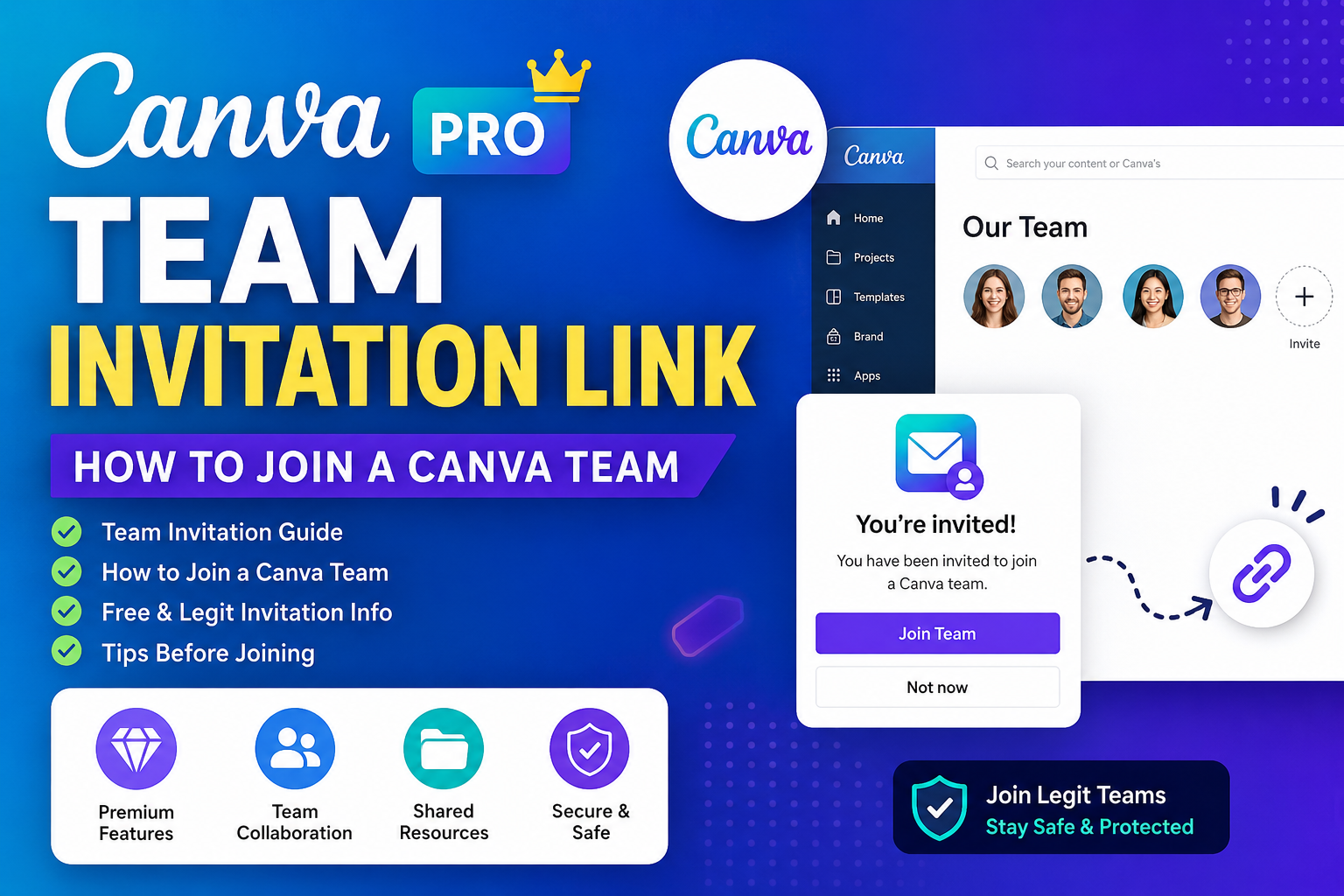





Canva Pro Team Invitation Link: How to Join a Canva Team & Get Access
Canva Pro Team Invitation Link searches have become increasingly popular among students, creators, freelancers, small businesses, and social media managers looking for an easy way to access Canva’s premium design features.
A Canva team invitation allows an existing team owner or administrator to invite another person to join their Canva team. Depending on the team subscription and permissions, invited members may be able to use premium design resources and collaborate on shared projects.
In this guide, we’ll explain how Canva Pro team invitation links work, how to join a team, where to find a legitimate invitation, and what you should check before accepting an invite.
What Is a Canva Pro Team Invitation Link?
A Canva team invitation link is a link or invitation generated by a Canva team administrator that allows another person to join the team.
Instead of creating a completely separate workspace, team members can collaborate within the same Canva environment. Canva supports team collaboration through invitations, shared designs, folders, templates, and other collaboration features.
A genuine invitation should come through Canva’s official platform or from a trusted team administrator.
Important: There is no universal Canva Pro invitation link that automatically gives everyone free Canva Pro access. Team invitations are controlled by the team owner or administrator.
How Does a Canva Team Invitation Work?
The basic process is simple:
- A team owner creates or manages a Canva team.
- The administrator invites members.
- The invited person receives an invitation.
- The person signs in to Canva or creates an account.
- They accept the invitation.
- If the team provides access to premium features, those features become available according to the team’s subscription and permissions.
Canva provides tools for team owners to invite members, assign roles, and manage permissions.
How to Join a Canva Pro Team
If you have received a legitimate Canva team invitation, follow these steps.
Step 1: Open the Invitation
Open the invitation sent to your email or provided by the team administrator.
Always check that the invitation directs you to the official Canva website before entering your login information.
Step 2: Sign in to Canva
Log in using your existing Canva account.
If you don’t have a Canva account, follow Canva’s registration process to create one.
Step 3: Accept the Invitation
After opening the invitation, Canva should provide an option to join the team.
Select the appropriate option and follow the instructions shown on screen.
Step 4: Check Your Team
After joining, open your Canva account and check the team/workspace you have joined.
You should be able to see the team and any designs, folders, templates, or resources that have been shared with you according to your permissions.
How to Create a Canva Team Invitation
If you already have a Canva team and want to invite someone, Canva provides team-management tools for adding members.
Generally, the administrator can:
- Open the team settings.
- Choose the option to invite members.
- Enter the member’s email address or use the available invitation method.
- Assign the appropriate role or permissions.
- Send the invitation.
Canva’s current team tools allow administrators to invite members and manage roles and permissions.
Where Can I Find a Free Canva Pro Team Invitation Link?
This is where you should be careful.
You may find websites, social media posts, Telegram groups, or other pages advertising phrases such as:
- “Canva Pro Free Team Link”
- “Canva Pro Lifetime Invitation”
- “100% Free Canva Pro Team”
- “Canva Pro Team Link 2026”
- “Unlimited Canva Pro Invite”
However, you should not assume that every advertised link is genuine or authorized.
A legitimate team invitation is created by a team administrator and is intended for authorized members. Canva’s terms state that access to a team is provided to users authorized by the team owner or controller.
For this reason, avoid websites asking you to provide your Canva password, payment information, verification codes, or other sensitive account details in exchange for an invitation.
Can I Get Canva Pro for Free Through a Team?
It depends on the team.
If an administrator has a Canva subscription that provides premium access to team members and legitimately invites you, your account may receive access to features available under that team’s plan.
However, joining a random team should not be treated as a guaranteed method of obtaining free Canva Pro.
Team owners can manage members and permissions, and access can change if the administrator removes a member or changes the team’s subscription.
Canva Pro Team vs Individual Canva Account
There are some important differences between using Canva individually and working through a team.
| Feature | Individual Account | Team |
|---|---|---|
| Personal designs | Yes | Yes |
| Design collaboration | Yes | Yes |
| Shared workspace | Limited | Yes |
| Team members | No dedicated team | Yes |
| Shared folders | Available depending on plan | Yes |
| Team management | No | Yes |
| Roles & permissions | Limited | Yes |
| Brand collaboration | Limited/plan dependent | Yes |
Canva’s team collaboration tools are designed to help multiple people work together, share designs, manage content, and maintain brand consistency.
What Happens After Joining a Canva Team?
After joining a team, you may have access to shared resources depending on the team’s setup.
These can include:
- Shared designs
- Team folders
- Templates
- Brand assets
- Collaboration tools
- Premium content available under the team’s subscription
- Team-specific projects
Your exact access depends on the team’s plan and the permissions assigned to your account.
Important Things to Check Before Joining
Before accepting a Canva team invitation, consider these points:
1. Verify the Invitation
Make sure the invitation is genuinely associated with Canva.
Avoid suspicious links that redirect you through unrelated websites.
2. Never Share Your Password
A legitimate team administrator should not need your Canva password.
Never send your password, OTP, authentication code, or recovery information to someone offering an invitation.
3. Check the Team Name
Before accepting an invitation, check the team name and, where available, the team owner or organization information.
4. Protect Your Personal Designs
If you use Canva for personal or business projects, understand which designs and folders are being shared with the team.
5. Don’t Trust “Lifetime” Promises
Be cautious about claims such as “lifetime Canva Pro,” “permanent team access,” or “never removed.”
Team membership can be changed by administrators, and Canva controls its plans and services.
Is It Safe to Use a Canva Pro Team Invitation Link?
A legitimate invitation from a trusted Canva team can be safe.
The risk comes from obtaining invitations from unknown or unauthorized sources.
Before joining, make sure:
- The invitation is genuine.
- You recognize the person or organization managing the team.
- You are not asked for your Canva password.
- You are not asked to install suspicious software.
- You are not redirected to suspicious websites.
- You understand what access you are receiving.
If an invitation looks suspicious, it is better not to accept it.
Official Canva Links
For the safest experience, use Canva’s official website and resources.
Canva: Visit Canva
Canva Team Invitation & Management: Canva Team Management
Canva Team Collaboration Guide: Canva Collaboration Guide
Frequently Asked Questions
Is there a free Canva Pro team invitation link?
There is no universal link that automatically provides everyone with free Canva Pro. A team invitation is created and controlled by a team administrator.
How do I get a Canva Pro team invite?
You need to receive an invitation from an authorized Canva team owner or administrator.
Can I join a Canva team without paying?
You may be able to join a team without personally purchasing a subscription if the team administrator has a plan that covers your membership. However, this depends on the team’s subscription and administrator.
Does a Canva team invitation give permanent Pro access?
Not necessarily. Your access depends on your team membership and the team’s subscription. The administrator can manage or remove members.
Can I use my existing Canva account?
Yes, a team invitation can generally be accepted using an existing Canva account, provided the invitation and account meet Canva’s requirements.
Can I join multiple Canva teams?
Canva supports team-based collaboration, but the teams and permissions associated with an account can vary. Check your Canva account for the teams available to you.
Is a Canva Pro invitation link safe?
It can be safe if it comes from a legitimate and trusted team administrator. Be cautious with links shared by unknown websites or individuals.
Final Thoughts
A Canva Pro Team Invitation Link can be a convenient way to join a legitimate Canva team and collaborate with other creators, businesses, or organizations.
However, users should avoid confusing legitimate team invitations with random “free Canva Pro” links found online. A genuine invitation comes from an authorized team and is managed through Canva.
If you’re looking for Canva Pro access, the safest approach is to use Canva’s official plans or join a team through someone you trust.
Remember: Never share your Canva password or verification codes with anyone offering a team invitation.